

Webhooks
Webhooks give you a way to push Plane events into other systems the moment they happen. Instead of polling the Plane API periodically to check for changes, your service registers a URL and Plane calls it, with a structured payload, whenever something occurs.
The value of webhooks over polling is immediacy and simplicity. Your endpoint receives exactly what happened without having to query anything. A work item created at 14:00:01 triggers a request at 14:00:01.
Webhooks in Plane work at the workspace level. A single webhook can subscribe to events from every project in the workspace. There is no per-project webhook configuration. Only Workspace Owners and Admins can create or manage them.
The current webhook system is v2. V2 payloads use dot-notation event names (e.g., workitem.created) and include structured fields for deduplication, diffing, and filtering that were not available in the original version. If you have webhooks created before v2, they appear in the list with a (deprecated) tag. They still deliver but do not receive any v2 fields. Recreate them as new webhooks to get the full v2 feature set.
Migrate your v1 webhooks to v2
V1 webhooks are deprecated. They continue to deliver but will not receive v2 payload features — including delivery_id and event_id for deduplication, previous_attributes for diffs on updated events, and dot-notation event names. There is no in-place upgrade. To move to v2, recreate each v1 webhook as a new webhook and update your server to handle the v2 payload structure.
To migrate a v1 webhook:
- Open the v1 webhook (marked deprecated) and note its URL and event subscriptions.
- Create a new webhook with the same URL and event subscriptions. See How to create a webhook.
- Save the new secret key from the CSV download — your server will need it to verify v2 requests.
- Update your server to expect the v2 payload structure. See Payload structure for the full field reference.
- Test that deliveries are arriving and your server is handling them correctly.
- Delete the original v1 webhook once you're confident the new one is working.
Creating a webhook
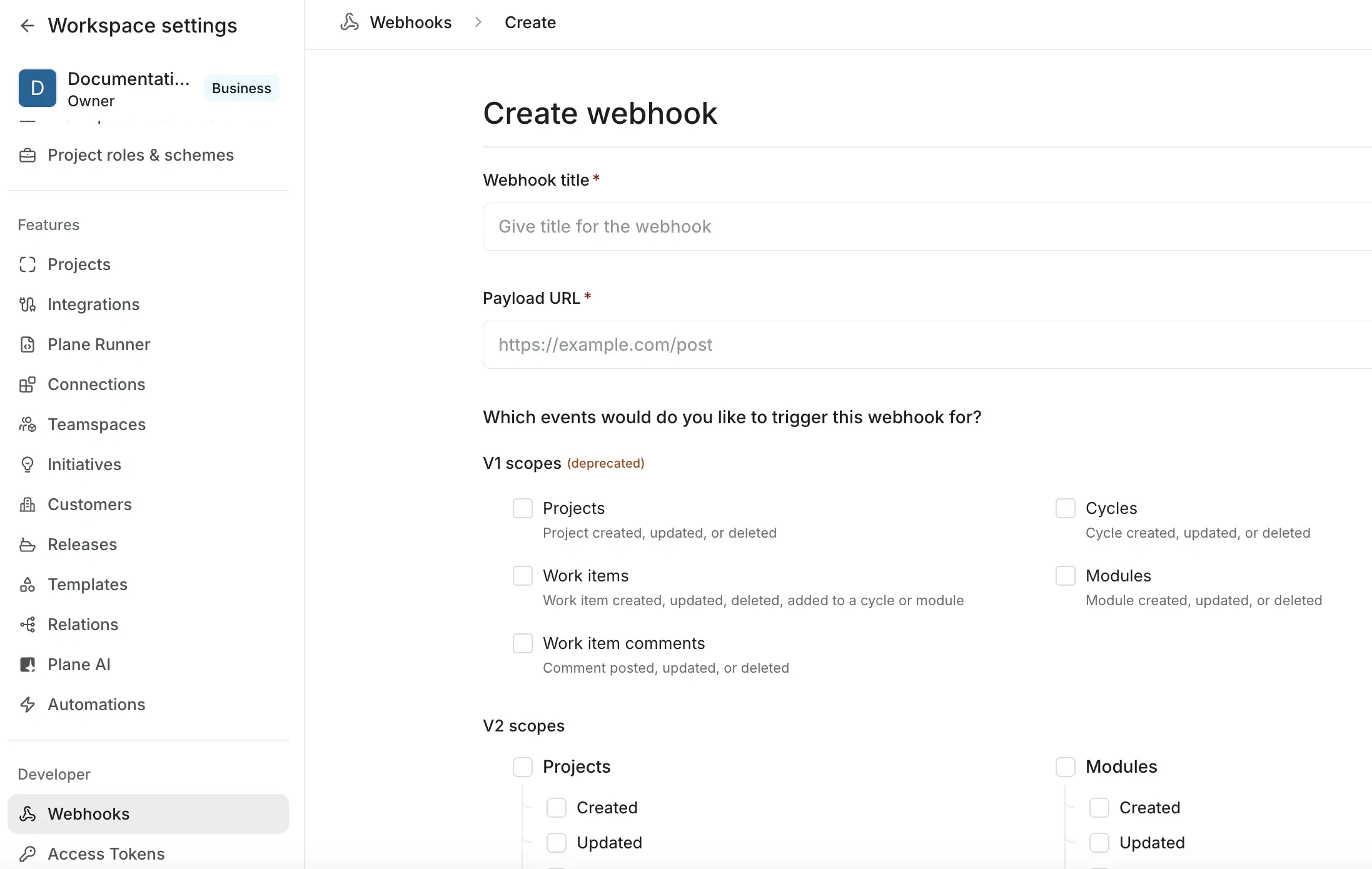
How to create a webhook
- Go to Workspace Settings → Webhooks.
- Click Add webhook.
- Enter a Webhook title and Payload URL.
- Check the events you want this webhook to fire for.
- Optionally, expand Advanced configurations to add a work item filter.
- Click Create webhook.
Plane downloads the secret key as a CSV file to your computer and returns you to the webhook list. The webhook is active immediately.
If you lose the CSV, you can re-generate the secret key from the edit form - but the old key stops working the moment you do.
What you're configuring
When you create a webhook, you're telling Plane two things: where to send events, and which events to send.
Webhook title is a label for your own reference - it appears in the webhook list and helps you tell multiple webhooks apart.
Payload URL is the endpoint that Plane will POST to. It must be a publicly reachable
http://orhttps://address. Local addresses (localhost, private IPs) are not accepted.Events control what triggers this webhook. The form groups events by type - Projects, Cycles, Modules, Work items, and so on. Check the specific actions you care about. You can subscribe to as many or as few as you need.
Advanced configurations lets you add a filter so the webhook only fires for work items that match specific conditions - for example, high-priority bugs in a particular project. See Filtering work item events below.
Secret key is generated automatically when you save the webhook. Plane downloads it as a CSV file the moment you click Create webhook and then returns you to the webhook list. It is not displayed on screen - the download is the only time you receive it automatically. Save the file. You need the key to verify incoming requests.
Filtering work item events
How filtering works
By default, a webhook fires for every work item event you subscribe to, across all projects in the workspace. Filters let you narrow that, for example, to fire only when a high-priority work item is created in a specific project.
Filters apply only to work item events. Events for projects, cycles, pages, milestones, and other types are always delivered without filtering.
Plane evaluates filters at delivery time. If the filter fails to evaluate for any reason, the delivery is skipped rather than defaulting to "deliver everything." If you're not receiving expected deliveries, check that your filter expression is valid.
Basic mode versus PQL mode
The filter builder in Advanced configurations offers two modes you can switch between freely:
- Basic - a visual picker. Select values from dropdowns and Plane converts your selections into a filter expression behind the scenes.
- PQL - direct text input. Type a PQL (Plane Query Language) expression. The expression shown is exactly what is stored and evaluated at delivery time.
Switching between modes is lossless - your filter is not lost when you switch.
How to add a work item filter
- Create or edit a webhook.
- Check at least one Work items event.
- Scroll down to the Work item v2 filters section.
- Use the filter builder to define your conditions in Basic mode, or switch to PQL mode to type an expression directly.
- Save the webhook.
PQL syntax and supported fields
| Filter field | PQL field name | Accepted values |
|---|---|---|
| Work item type | type_id | Work item type UUID |
| State group | state_group | backlog · unstarted · started · completed · cancelled |
| Assignees | assignee_id | User UUID |
| Labels | label_id | Label UUID |
| Projects | project_id | Project UUID |
| Priority | priority | none · low · medium · high · urgent |
| Start date | start_date | ISO date |
| Due date | target_date | ISO date |
Expression syntax
priority = "urgent"                         Single value
priority in ["urgent", "high"]              Multiple values
state_group = "started"                     State group match
assignee_id = "<user-uuid>"                 Specific assignee
project_id = "<project-uuid>"               Specific project
Managing webhooks
Disabling versus deleting
Disabling a webhook pauses delivery without removing any configuration. The webhook stays in the list, its event subscriptions are preserved, and you can re-enable it at any time. Events are not queued while the webhook is disabled - any event that fires during the disabled period is not delivered. Use this when your endpoint is temporarily down or you need to make changes to your receiving system.
Deleting a webhook removes it permanently - configuration and delivery history are gone. There is no undo.
Edit a webhook
- Go to Workspace Settings → Webhooks.
- Click ··· on the webhook row and select Edit.
- Update the title, URL, event subscriptions, or filter.
- Click Update webhook.
Disable or enable a webhook
- Go to Workspace Settings → Webhooks.
- Click ··· on the webhook row.
- Select Disable webhook to stop delivery, or Enable webhook to resume it.
Delete a webhook
- Go to Workspace Settings → Webhooks.
- Click ··· on the webhook row and select Delete webhook.
View and copy the secret key
The secret key is not displayed during creation - Plane downloads it as a CSV instead. To access it later:
- Go to Workspace Settings → Webhooks.
- Click ··· on the webhook row and select Edit.
- In the Secret key section, click the eye icon to reveal the key.
- Click the copy icon to copy it.
Re-generate the secret key
Re-generate if your secret key is compromised. The old key is invalidated the moment you re-generate - update your server before completing this step or your signature verification will break.
- Go to Workspace Settings → Webhooks.
- Click ··· on the webhook row and select Edit.
- In the Secret key section, click Re-generate key.
Plane downloads the new key as a CSV.
Securing requests
Why Plane signs every request
Any server on the internet can send a POST request to your endpoint. Without a way to verify the source, someone could send fake webhook payloads to your system and trigger whatever logic you've built around them.
Plane solves this by signing every request with HMAC-SHA256 using your secret key. The signature is attached as an X-Plane-Signature header. Because only Plane and you know the secret, a valid signature proves the request came from Plane and was not modified in transit.
Skipping verification means your endpoint will process any request that arrives - forged or not.
How to verify a webhook payload
On your server, compute the expected signature from the raw request body bytes and compare it to the value in X-Plane-Signature. Use a constant-time comparison to prevent timing attacks.
import hashlib
import hmac

def verify_webhook(request_body_bytes: bytes, secret: str, signature_header: str) -> bool:
    expected = hmac.new(
        secret.encode("utf-8"),
        request_body_bytes,
        hashlib.sha256,
    ).hexdigest()
    return hmac.compare_digest(expected, signature_header)
Use the raw bytes from the incoming request - not a parsed or re-serialized version. JSON re-serialization can change key ordering, spacing, or escaping, which will produce a different signature and cause verification to fail. Reject any request where the signature does not match before running any other logic.
Signature header reference
| Header | Value |
|---|---|
X-Plane-Signature | HMAC-SHA256 hex digest of the raw request body, keyed with your webhook secret |
The secret key is formatted as plane_wh_ followed by a random string. Plane masks it in the UI. To view the full key, open the edit form for the webhook and use the show/hide toggle in the Secret key section.
Delivery and monitoring
How Plane delivers events
Plane sends webhook requests asynchronously. When an event occurs, Plane queues the delivery and sends a POST request to your endpoint. Any 2xx response is treated as a success.
If your endpoint is unavailable or returns a server error, Plane retries using exponential backoff with a ~10-minute base and jitter. After 5 failed attempts, Plane automatically disables the webhook and emails the webhook creator. Re-enable it from the webhook list once your endpoint is fixed.
4xx responses are not retried. Plane treats them as a deliberate rejection from your server.
Retry behavior is automatic. There is no way to trigger a manual retry for a failed delivery.
How to read delivery logs
- Go to Workspace Settings → Webhooks.
- Click on a webhook to open its detail view.
The top of the view shows four summary stats:
| Stat | What it shows |
|---|---|
| Total deliveries | Total number of delivery attempts |
| Successful | Deliveries that received a 2xx response |
| Failed | Deliveries that returned an error or exhausted retries |
| Success rate | Successful deliveries as a percentage of total |
Below the summary, the delivery log lists individual attempts:
| Column | What it shows |
|---|---|
| Events | The event type that triggered the delivery |
| Status | Successful or Failed |
| Response time | How long your endpoint took to respond, in milliseconds |
| Event time | When the delivery was sent |
Events and payload
Event reference
| Group | Event key | Fires when |
|---|---|---|
| Projects | project.created | A project is created |
project.updated | A project is updated | |
project.archived | A project is archived | |
project.deleted | A project is deleted | |
| Cycles | cycle.created | A cycle is created |
cycle.updated | A cycle is updated | |
cycle.archived | A cycle is archived | |
cycle.deleted | A cycle is deleted | |
| Modules | module.created | A module is created |
module.updated | A module is updated | |
module.archived | A module is archived | |
module.deleted | A module is deleted | |
| Milestones | milestone.created | A milestone is created |
milestone.updated | A milestone is updated | |
milestone.deleted | A milestone is deleted | |
| Pages | page.created | A page is created |
page.updated | A page is updated | |
page.archived | A page is archived | |
page.deleted | A page is deleted | |
| Page comments | page.comment.created | A comment is added to a page |
page.comment.updated | A page comment is edited | |
page.comment.deleted | A page comment is deleted | |
| Work items | workitem.created | A work item is created |
workitem.updated | A work item is updated | |
workitem.archived | A work item is archived | |
workitem.deleted | A work item is deleted | |
| Work item comments | workitem.comment.created | A comment is added to a work item |
workitem.comment.updated | A work item comment is edited | |
workitem.comment.deleted | A work item comment is deleted | |
| Work item links | workitem.link.created | A link is added to a work item |
workitem.link.updated | A work item link is updated | |
workitem.link.deleted | A work item link is removed | |
| Work item votes | workitem.vote.created | A vote is cast on a work item |
workitem.vote.deleted | A vote is removed | |
| Work item attachments | workitem.attachment.created | A file is attached to a work item |
workitem.attachment.updated | A work item attachment is updated | |
workitem.attachment.deleted | A work item attachment is removed | |
| Work item relations | workitem.relation.created | A relation is added between work items |
workitem.relation.deleted | A relation is removed | |
| Work item dependencies | workitem.dependency.created | A dependency is added |
workitem.dependency.deleted | A dependency is removed | |
| Work item page links | workitem.page_link.created | A page link is added to a work item |
workitem.page_link.deleted | A page link is removed |
Request headers
Every webhook request includes these headers:
| Header | Value |
|---|---|
Content-Type | application/json |
User-Agent | Autopilot |
X-Plane-Delivery | Unique UUID per delivery attempt. Matches delivery_id in the payload body. |
X-Plane-Event | The event type, e.g. workitem.created. Matches event in the payload body. |
X-Plane-Signature | HMAC-SHA256 signature of the request body |
These headers are reserved and cannot be overridden with custom values: host, content-length, content-type, user-agent, x-plane-delivery, x-plane-event, x-plane-signature.
Payload structure
All v2 payloads share this top-level structure:
{
  "version": "v2",
  "delivery_id": "<uuid>",
  "event_id": "<uuid>",
  "entity_id": "<uuid>",
  "entity_type": "<string>",
  "event": "<dot.notation.event>",
  "webhook_id": "<uuid>",
  "workspace_id": "<uuid>",
  "data": {},
  "previous_attributes": {}
}| Field | Description |
|---|---|
version | Always "v2" |
delivery_id | Unique ID for this delivery attempt. Matches the X-Plane-Delivery header. A new UUID is generated for each retry. |
event_id | Unique ID for the triggering event. Stable across retries - use this for deduplication. |
entity_id | UUID of the primary entity affected by the event. |
entity_type | Type of the entity, e.g. issue, cycle, issue_comment, issue_link. |
event | Full dot-notation event name, e.g. workitem.comment.updated. |
webhook_id | ID of the webhook configuration that triggered this delivery. |
workspace_id | UUID of the workspace in which the event occurred. |
data | Full entity object for create and update events. Empty object {} for delete events. |
previous_attributes | Present on all events. For updated events, contains the previous values of changed fields. For deleted events, contains the full record before deletion. Empty object {} for all other events. |
Payload examples
workitem.comment.created
{
  "version": "v2",
  "delivery_id": "01ab9316-f978-4449-bad6-dce958be8454",
  "event_id": "0afa042d-92a9-4326-bdca-5ff5490dbf09",
  "entity_id": "088a83b9-a53f-4dda-b2bc-c860cf455997",
  "entity_type": "issue",
  "event": "workitem.comment.created",
  "webhook_id": "285f087b-e1e0-4f90-b9f4-0b720acfac04",
  "workspace_id": "d250cd44-fa71-42c2-b2b5-3c73227288fc",
  "data": {
    "id": "088a83b9-a53f-4dda-b2bc-c860cf455997",
    "name": "Webhook Test Work Item 2",
    "comment": {
      "id": "4797f841-c731-4e55-971f-d9cfe1938dfb",
      "access": "INTERNAL",
      "actor_id": "88fc36c8-73b0-4547-81c7-96b70f61835e",
      "issue_id": "088a83b9-a53f-4dda-b2bc-c860cf455997",
      "edited_at": null,
      "comment_stripped": "Webhook Test Comment"
    }
  },
  "previous_attributes": {}
}
workitem.link.created
{
  "version": "v2",
  "delivery_id": "616d98fe-35a7-4431-a233-db40936c8339",
  "event_id": "7b3c1e2a-8f94-4b12-a781-2c5e9d4f6a03",
  "entity_id": "8661bdfa-098f-434d-8e44-b1f32de62406",
  "entity_type": "issue_link",
  "event": "workitem.link.created",
  "webhook_id": "285f087b-e1e0-4f90-b9f4-0b720acfac04",
  "workspace_id": "d250cd44-fa71-42c2-b2b5-3c73227288fc",
  "data": {
    "id": "a6f8e562-49d2-4c19-bc4b-2bcb9d917da1",
    "url": "http://google.com",
    "title": "",
    "issue_id": "8661bdfa-098f-434d-8e44-b1f32de62406",
    "created_at": "2026-05-20T09:51:27.373582+00:00",
    "project_id": "45b87d89-0ce0-4d6f-8903-4070f1c67f1b",
    "workspace_id": "d250cd44-fa71-42c2-b2b5-3c73227288fc",
    "created_by_id": "88fc36c8-73b0-4547-81c7-96b70f61835e"
  },
  "previous_attributes": {}
}
workitem.link.updated
{
  "version": "v2",
  "delivery_id": "2a0d0510-9052-446e-a1c7-a704bbd68cba",
  "event_id": "9d508cd9-36c2-44a5-928d-7ee2f2a3b8a8",
  "entity_id": "775c5716-5302-4617-bb9f-2cd843911268",
  "entity_type": "issue",
  "event": "WebhookScope.ScopeChoices.WORK_ITEM_UPDATED",
  "webhook_id": "8944ed18-1331-4eae-b9bb-7c40864b8abd",
  "workspace_id": "b54ecb0d-e3eb-4986-b238-f83fd8665e65",
  "data": {
    "id": "775c5716-5302-4617-bb9f-2cd843911268",
    "name": "webhook test 3",
    "point": "None",
    "type_id": "None",
    "is_draft": false,
    "priority": "none",
    "state_id": "067b88e5-304b-4221-ba09-94340dcc36e5",
    "label_ids": [],
    "parent_id": "None",
    "created_at": "2026-03-31T11:44:41.249292+00:00",
    "deleted_at": "None",
    "project_id": "59e3be42-87ec-4950-99a3-ae639cf2b089",
    "sort_order": 75535,
    "start_date": "None",
    "updated_at": "2026-03-31T11:44:41.249304+00:00",
    "archived_at": "None",
    "external_id": "None",
    "sequence_id": 3,
    "target_date": "None",
    "assignee_ids": [],
    "completed_at": "None",
    "workspace_id": "b54ecb0d-e3eb-4986-b238-f83fd8665e65",
    "created_by_id": "754009ab-3fb5-424e-909a-b46e9c9d0c4f",
    "updated_by_id": "None",
    "external_source": "None",
    "description_json": {},
    "last_activity_at": "2026-03-31T11:44:41.346305+00:00",
    "estimate_point_id": "None"
  },
  "previous_attributes": {
    "last_activity_at": "2026-03-31 11:44:41.242868+00"
  }
}